📚 How to Send Books
to Your Kindle
Set this up one time. After that, every book is one click. Forever.
Hey! Want to read books from our library on your Kindle? It's easier than it looks.
The setup has three parts:
about us
about your Kindle
🛒 Tell Amazon about us
About 3 minutes — only do this once
Amazon is super protective of your Kindle. It only lets books in from people on a special "approved list." So we need to add ourselves to that list first.
Step 1 — Open the special Amazon page
The fastest way — just click this link:
👉 Open Amazon Kindle SettingsSign in if it asks you. That's it.
Can't get the link to work? Go to amazon.com, scroll to the very bottom, and click "Manage Your Content and Devices" → click the Preferences tab → scroll down to Personal Document Settings.
Step 2 — Find your Kindle's secret email
Every Kindle has its own secret email address that ends in @kindle.com. Books you email there show up on your Kindle.
On the page you just opened, look for "Send-to-Kindle E-Mail Settings". You'll see a list of all your Kindles and Fire tablets. Find the one you actually read on, and copy the email next to it.
You'll need it in Part 2.
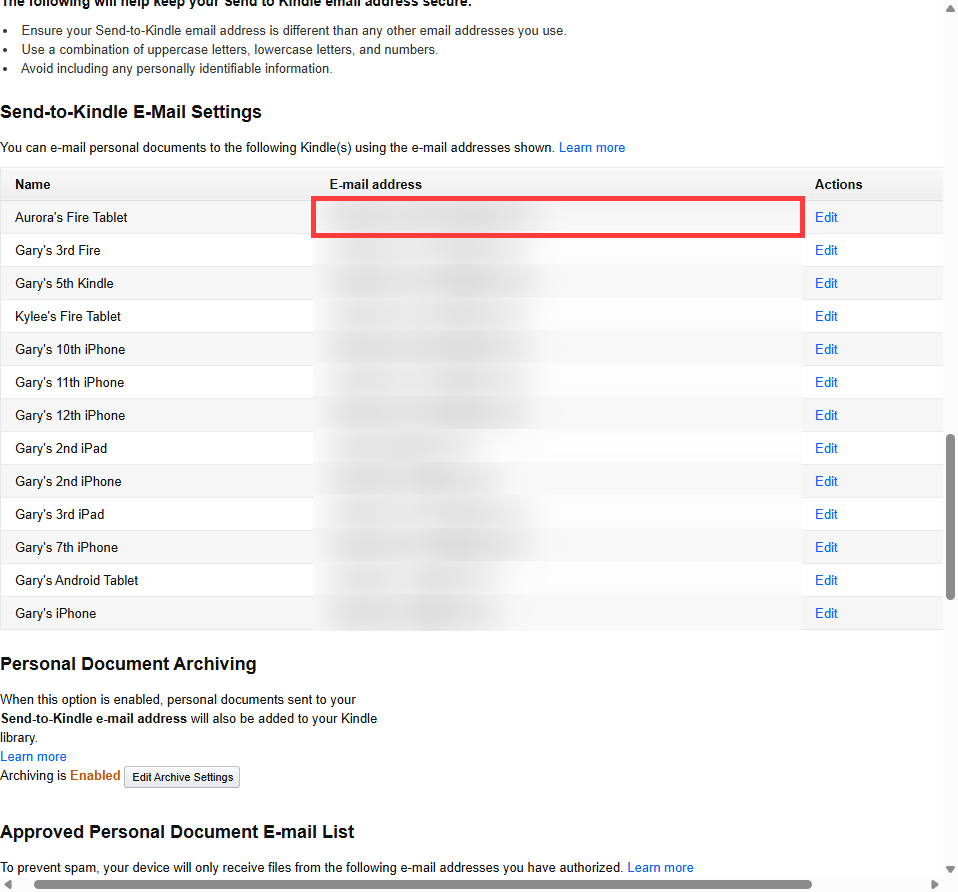
Step 3 — Add OnFleek to your "okay" list
If you skip it, Amazon throws our books straight in the trash before they ever reach your Kindle.
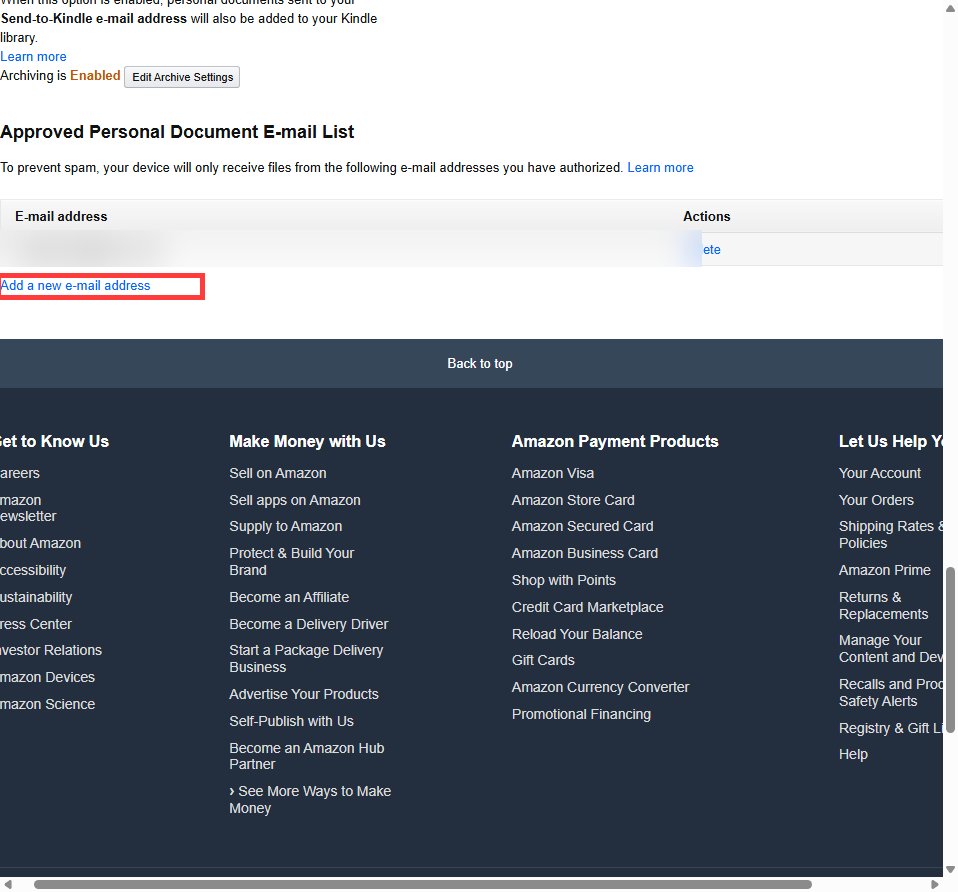
Still on the same page, scroll down a little more until you see "Approved Personal Document E-mail List."
- Click "Add a new e-mail address"
- Type this exactly:
[email protected] - Click Add Address
🎉 Done with Amazon! Close that tab.
📚 Tell OnFleek about your Kindle
About 30 seconds — only do this once
Step 4 — Save your Kindle email in OnFleek
1. Go to kindle.onfleek.live and sign in (same login as movies)
2. Look at the top-right corner for a little person icon. Click it.

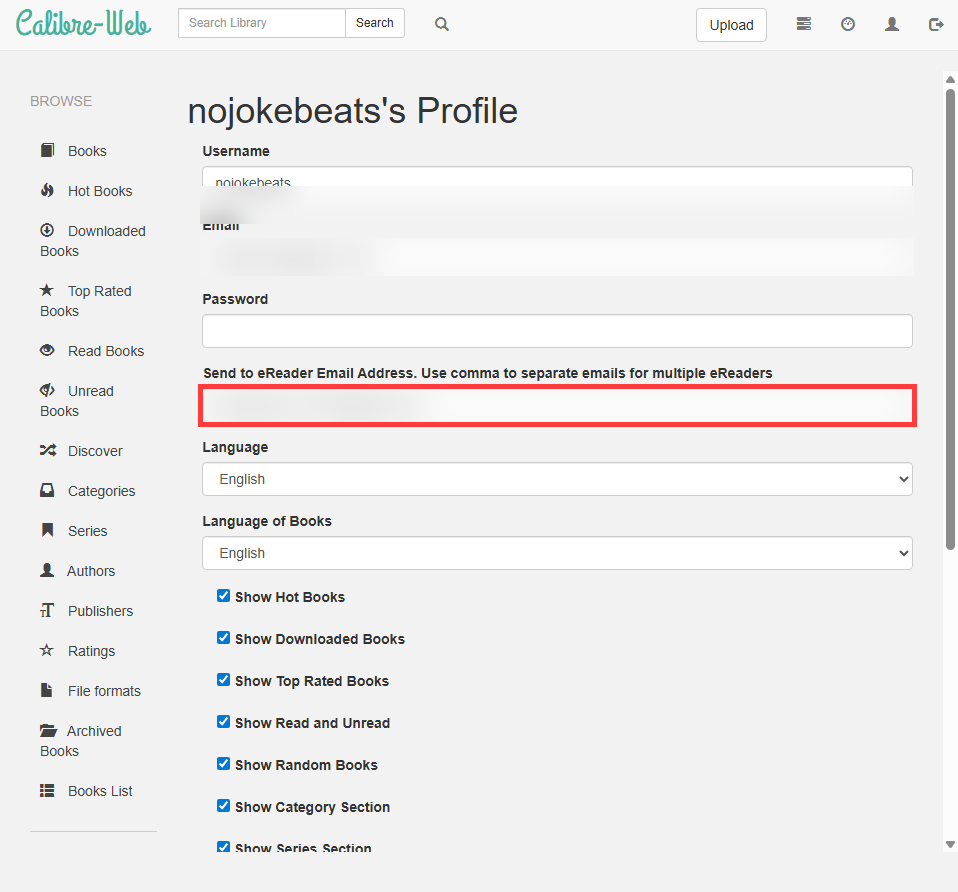
3. On your profile page, find the box labeled "Send to eReader Email Address"
4. Paste the @kindle.com email you copied from Amazon
5. Scroll down and click Save
🎉 Done with setup! You will never have to do that again.
✨ Send a book!
From here on, sending books is one click
Step 5 — Pick a book and send it
1. Go back to kindle.onfleek.live
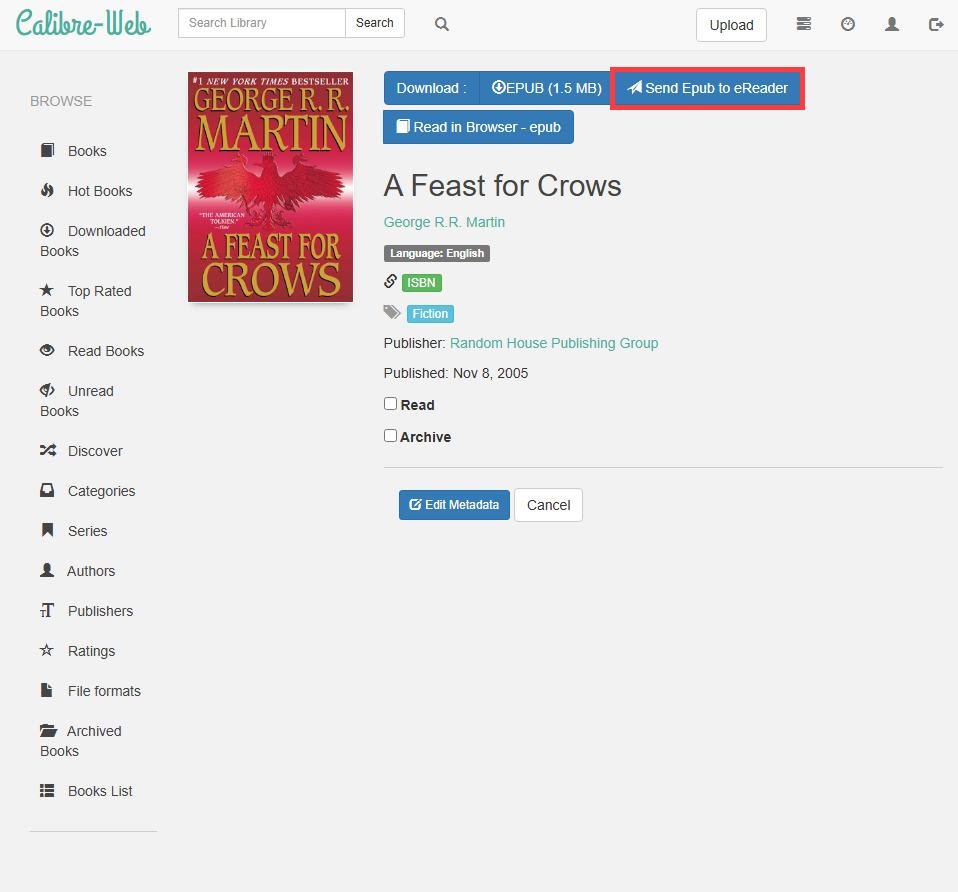
2. Click any book that looks good
3. Click the button that says "Send Epub to eReader" (or "Send Pdf to eReader" or "Send Mobi to eReader" — they all work the same)
4. Make sure your Kindle is on Wi-Fi
5. Wait about a minute ⏱️
6. The book shows up on your Kindle 📖
🎉 That's it! Open it up and start reading.
🚧 Things that might trip you up
| 😕 Problem | 💡 What to do |
|---|---|
| The book never showed up | You probably skipped Step 3. Go back to Amazon and add [email protected] to the approved list. |
| Book is too big | Amazon won't accept books bigger than 50MB. Pick a different format on the book page. |
| Kindle's not on Wi-Fi | Books only download when your Kindle is connected. Connect it and wait. |
| It's been WAY longer than a minute | Sometimes Amazon takes 5–10 minutes. If it's still not there, try sending it again. |